
Repair Your Sound
Last updated: September 2026
What Repair is for
Repair changes how your recording sounds, not what it says: a boomy room, popping "p" sounds, traffic under the voices, a word that ducks away. Wrong words and stray "um"s are text work, and they live in Edit Like a Doc.
Open the Repair tab in the panels on the right. Everything in it applies to the whole composition you're on, and it needs the podcast unlocked with Start Editing: until then the panel sits there dimmed. Not sure what a tool does? Hover its name for a two-line explanation.
Get the room out from under the voices
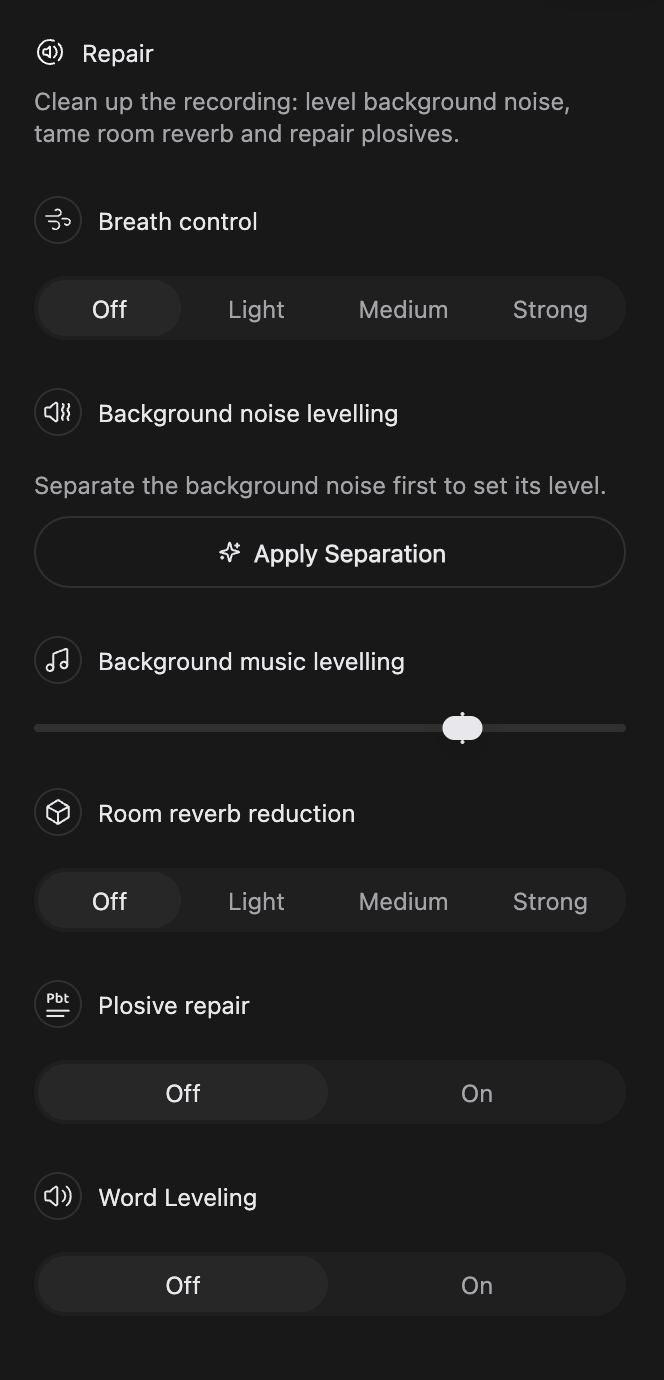
Hum, traffic, air conditioning, a bed of room tone sitting under the speech? That's Background noise levelling, and it is the one separation you start yourself: click Apply Separation. It pulls the noise off the voices into a layer of its own, so you can turn it down without thinning them. It runs once, and then a level slider takes its place: drag it down to pull the room back. Judge it on a passage with a quiet gap, where noise is easiest to hear. One level covers the whole recording, and the background noise row on the timeline is the same control.
Note: Don't take the room out altogether. What you recorded in is part of what people hear, and an episode with none of it left sounds flat and impersonal. Bring the noise down until it stops competing with the voices, then leave the rest of it alone.
Hold the music bed steady
Background music levelling sets every separated music clip at once, moving the music under your hand as you drag, and it overrides any level you set on a single clip. The music split itself needs no switching on: every project is separated as it opens. To change one section only, use that clip's own control on the timeline row. No music in the recording? The section offers Import Background Music instead. More in Background Music & Separation.
Rooms, pops and uneven words
These three you switch on and judge by ear. Each takes a moment to work through the recording.
Room reverb reduction is for voices that sound hollow or boxy because of the room rather than the microphone. Start at Light, listen back, and step up to Medium or Strong only if the room is still in the way. Same idea as the noise above: you're pulling the room back, not deleting it. Strong takes noticeably longer. Off leaves the room as you recorded it.
Plosive repair is for "p" and "b" sounds that pop, usually from working close to a microphone without a pop filter. Click On and the repaired audio replaces what was there. It stacks with Room reverb reduction.
Word Leveling is for the speaker who trails off at the end of a sentence or swallows the odd word: it lifts the quiet ones back up with the rest. That's a different job from the Mixer's Auto, which sets one steady level per speaker: see Mixer & Speaker Levels.
Tame the breathing
Breath control quietens and shortens the breaths between phrases. Light, Medium and Strong treat them across the composition, and you can overrule the app one breath at a time. It's the only section that marks your transcript, and the only one with an article of its own: Breath Control.
Trying a heavier treatment
These settings stay with the composition you're on, so duplicate it and you can push the copy hard while keeping the version you already like: Compositions & Versions. Exports carry all of it, so the file matches what you hear in the editor: Export & Publish.