
Your First Project, Step by Step
Last updated: September 2026
You'll go from opening a recording to exporting a finished file, using the demo content your account came with. None of it touches the capture: Original always holds the full, uncut audio.
Open a demo recording
Click Podcasts in the sidebar, pick a recording, then click Edit in the podcast header. Edit opens whichever composition you had open last; click a card under Compositions for a particular one. No demo content? Import a file of your own and join at Start Editing below.
If you see a banner, click Restore: that fetches the local copy back onto this computer.
Unlock the tools
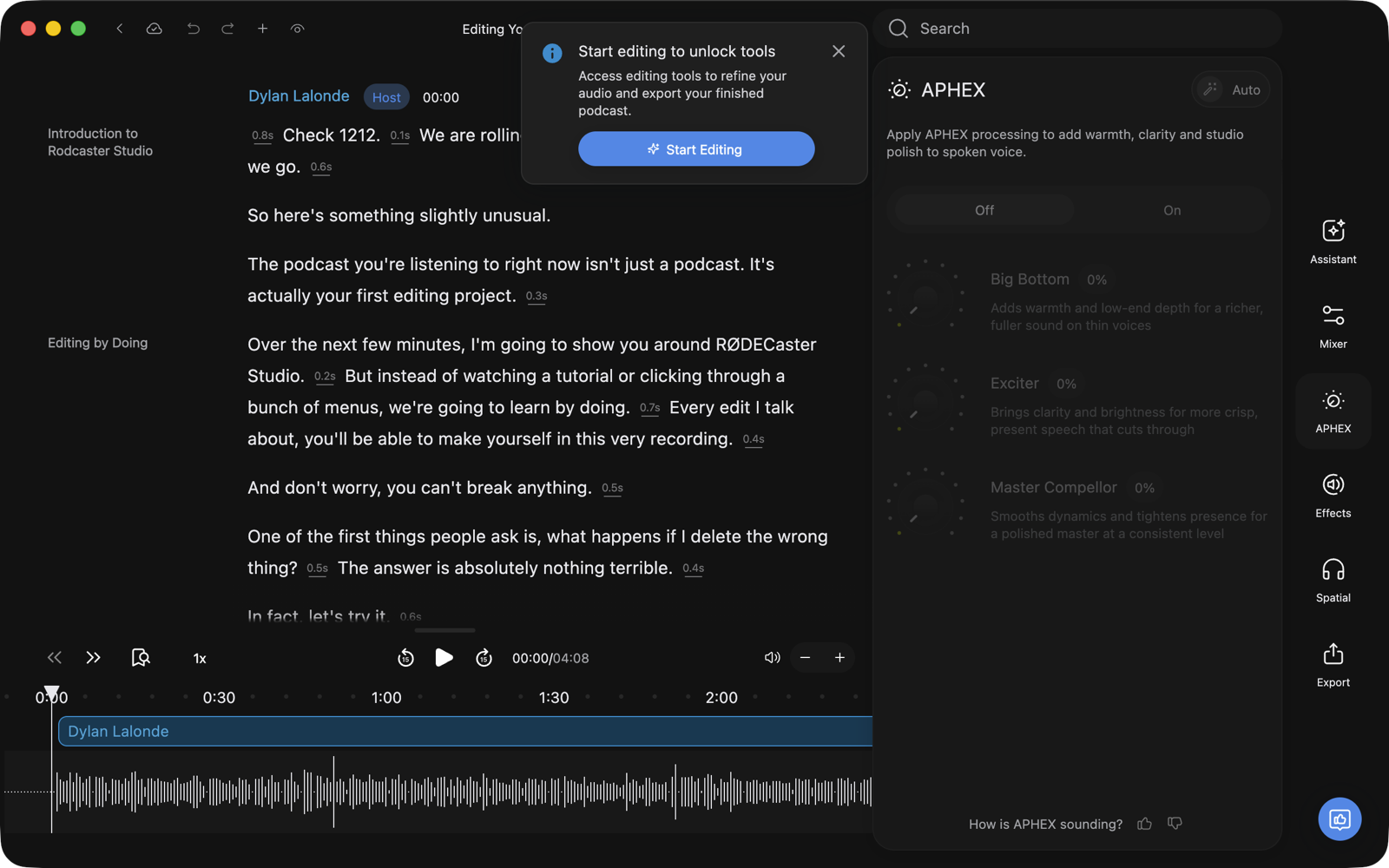
Until you unlock a recording, the transcript reads and plays but nothing will change it. Click the RØDIE tab in the panels on the right, click Start Editing, and wait for the button to read Editing unlocked!
Note: Unlocking is how a recording becomes yours to work on, one recording at a time, and it sticks. Uploading your audio and keeping it in your library never costs you anything, and through the beta you can unlock as many recordings as you like, free.
The Editor Window maps the rest of it.
Make your first cut
Editing the transcript edits the audio: delete a word and its audio goes with it, and the cut closes up.
Double-click a word to select it, or drag across a run of words. Right-click inside the selection and choose Delete, or press Delete. It takes everything between the first and last selected word, silences included, and undoes in one step with ⌘Z (Ctrl+Z on Windows).
Your first edit starts a new composition and moves you into it, so Original keeps the recording untouched.
There is more in Edit Like a Doc and Compositions & Versions.
Compare, and put something back
Not sure a cut landed right? The eye button in the top bar, tooltipped View changes, shows your cut words again, struck through.
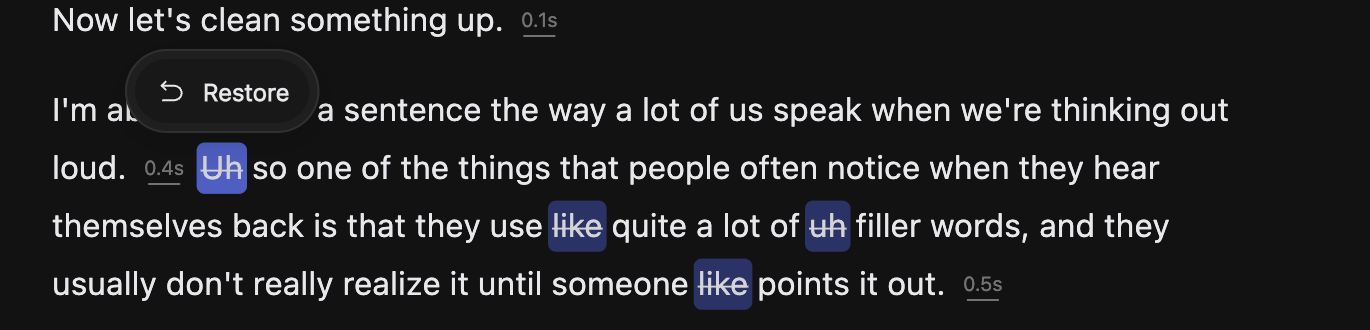
Right-click a struck-through word or run and choose Restore.
For edits undo can no longer reach, turn the comparison off, select the words, right-click, open More options and choose Reset. The span comes back exactly as recorded.
Ask RØDIE for an edit
Some passes are not worth doing by hand, like taking every um out of an hour of tape. Click the RØDIE tab, then Remove filler words, or type your own instruction into Describe your edit and press Enter.
RØDIE leaves what it proposes pending rather than cutting it. Step through with the arrows above the message box, then Apply all or Discard All. Discard All cannot be undone: run the action again to get the proposals back.
RØDIE, Your Editing Assistant goes further.
Level the speakers
One person sitting quieter than everyone else all episode is a Mixer job. Click the Mixer tab, then Auto. It sets one fader per speaker so the conversation sits at a single level. Tap Auto again to put your previous fader positions back. Move a fader by hand and Auto switches off.
Mixer & Speaker Levels has the detail.
Export with a platform preset
Click Export at the top right, stay on Audio, open Preset and pick your platform, say Spotify or Apple Podcasts. That matches the file to your host's spec. Name the file, click Export, choose where to save.
Set Preset back to Custom to change the settings yourself. Anything still pending exports the way it plays, struck-through words left out.
Export in the editor gives you the composition on screen; for another, use its menu on the podcast page.
Every option is in Export & Publish.