
Import & Upload Recordings
Last updated: September 2026
Get audio in
One file makes a podcast. Audio or video, off your computer or straight off a RØDECaster. Several audio files at once make a multitrack, one track per microphone.
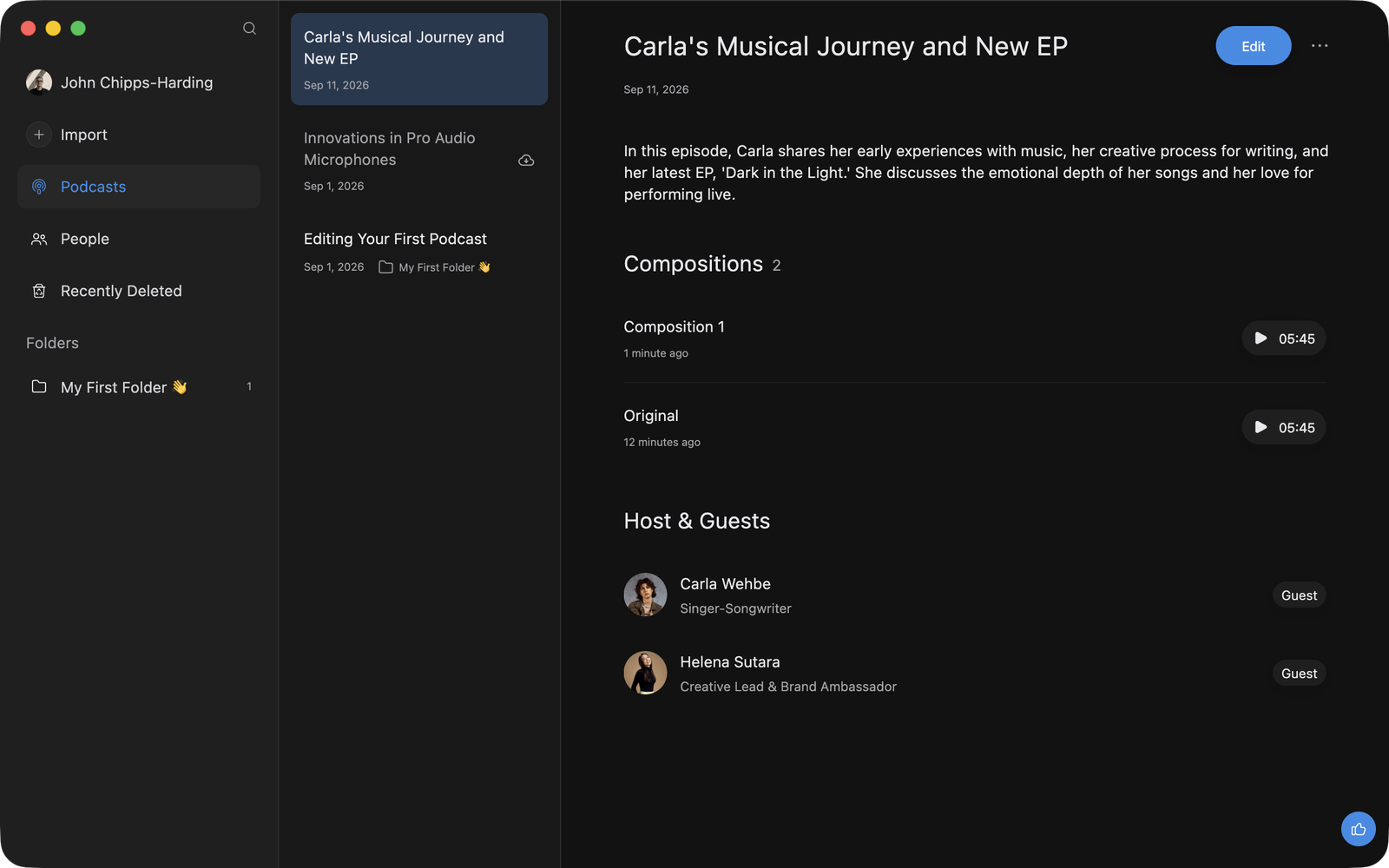
Click Import in the sidebar and choose your file. The same dialog opens from File > Import Podcast..., or ⌘O on macOS and Ctrl+O on Windows. Or just drag the file onto the window, anywhere you like, one at a time.
Audio: MP3, WAV, M4A, AAC, FLAC and OGG (Vorbis, not Opus). Video: MP4, MOV and M4V. Import a video and you edit its sound. The video itself never leaves your machine, so leave it where it is: the export dialog pairs picture and sound back up later. See Export Transcripts & Timelines.
A take from a RØDECaster Pro II or Duo is a file like any other, so import it from the card. Choosing on the device what gets sent to your library is coming soon.
Recorded a track per microphone? Select them all in Import and they come in together as a multitrack, where you balance the mics before it becomes a podcast. See Multitrack Recordings.
File it straight into a folder
Click the folder under Folders first, then Import, or drop the file onto the pane. Start from Podcasts instead and it lands at the top level of your library. See Organise Your Library.
Watch it process
Select a podcast that isn't ready yet and you get four steps: Uploading, Converting, Transcribing and Summarising. It's called Processing... until a real title is written from the content. When the steps finish, it opens with its transcript, its summary and its speakers split apart, ready to edit.
Big files need nothing special from you: a patchy connection usually recovers on its own, and there's no length limit. A step that looks stuck on a long recording usually isn't.
Cancel or retry
To stop an import, click Cancel in the top bar of the podcast's detail pane and confirm Stop Processing. That deletes the podcast rather than pausing it, and you can't undo it.
If the upload fails, the podcast stays in your library with an Import Failed card. Click Retry and pick the file again. It's a fresh import, not a resume, so the failed one goes.
Note: To add a clip or a music bed to an edit you're already working on, use the editor's + menu instead of a new import. See Insert Audio into Your Edit and Background Music & Separation.