
Compositions & Versions
Last updated: September 2026
What a composition holds
A composition is one saved cut of your episode: the words and pauses that survive, in order. It also holds your mixer levels, APHEX and Repair settings, Spatial placement and imported clips. Switch composition and that cut's levels, effects and placement come back exactly as you left them. See Mixer & Speaker Levels and Background Music & Separation.
Original is your safety net
Original is the recording exactly as it arrived, and no edit can change its cut. You can duplicate it and export it, but not rename or delete it.
It protects the cut, not the sound.
Start a second version
Edit while Original is active and Original stays as it is: your work saves into a new composition called Composition 1.
- Open the podcast and click Start Editing.
- Check the top bar still ends with Original.
- Make any edit at all. The top bar now reads Composition 1 instead.
Only that first edit starts the new composition. Everything after it stays in the one you are on. An explicit save on Original does the same even when the cut is untouched, so an effects tweak on its own is enough.
Find and switch between cuts
Compositions are listed under the podcast header, newest first, so Original sits at the bottom. Click a card to open that cut. The play button on a card is a switch as well as a play: it makes that composition the active one.
In the editor, the top bar shows the podcast title, a slash, then the composition name. Click it for the full list, oldest first, with a tick beside the one you are on. Click a row and the editor reloads there.
Pending edits don't hold you up. Each composition keeps its own, so switch away mid-review and they are waiting when you come back.
Rename, duplicate and delete
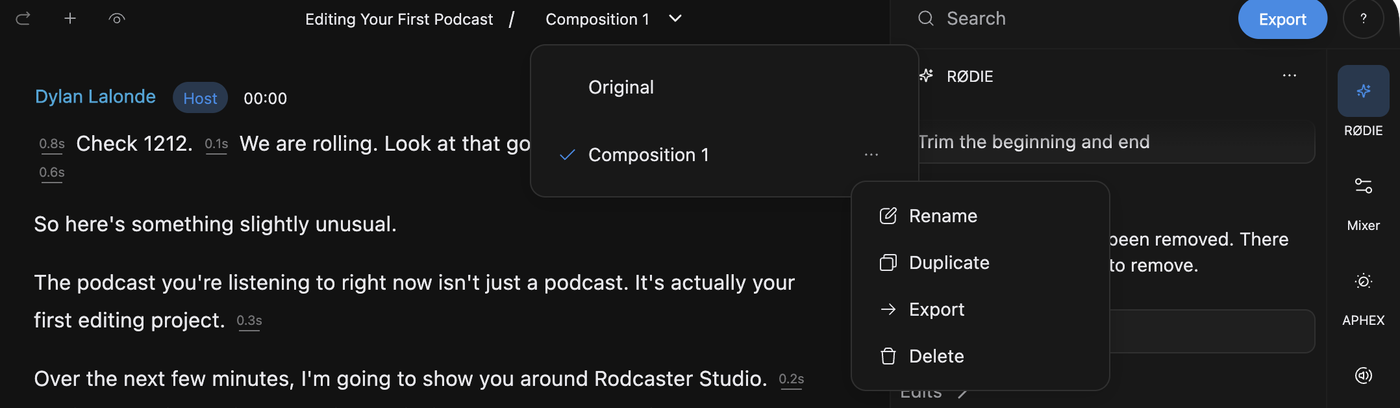
All three sit on a composition's menu, in the editor list or on the podcast overview, alongside Export. They need the podcast unlocked.
Duplicate before you try something drastic. The copy is named after its source, and duplicating the cut you are on takes you to the copy and brings your pending edits with it. Names need not be unique, so rename the copy straight away or you'll be opening cards to work out which is which.
Delete is permanent. A deleted composition does not go to Recently Deleted the way a deleted podcast does, and its saved effects and arrangement go with it. Undo can put the words back, but not those.
Undo and redo (⌘Z or Ctrl+Z, and ⌘⇧Z or Ctrl+Shift+Z) walk back over a new version, a duplicate or a switch, so they can move the whole editor to a different cut.
RØDIE can switch, create, duplicate, rename and delete compositions, and Create a short highlight duplicates your current cut and trims the copy for you.
See what changed, and put one change back
Want to know what an edit pass actually removed? Click the eye button at the left of the top bar. Cut words come back struck through and added words carry the insertion highlight.
Right-click any change and choose Restore to put that one back and leave the rest of your edit alone. Consecutive cut words come back as a phrase, in a single step.
To reach further back than undo goes, select a passage of transcript, right-click it and choose Reset: inside one speaker's paragraph it sits under More options. That span returns to the recording as captured, however old the edits are, and everything outside the selection is left alone. Turn the comparison off first, because Reset is hidden while it is on. A reset passage plays exactly as recorded, so per-word volume corrections and any separated music or noise no longer apply to it.
Export one cut
Choose Export on a composition's menu. The dialog opens on that cut and fills in the podcast title plus the composition name as the file name. You get the one you clicked, not the one on screen. The rest of the dialog is covered in Export & Publish.
To compare by ear, switch to Original, listen, then switch straight back. To clear every composition and rebuild from the recording, right-click the podcast in your library and choose Reset (Delete, Recover & Start Over).