
The Editor Window
Last updated: September 2026
The editor is where a recording becomes an episode: transcript, playback, cuts, voice balance and RØDIE in one window.
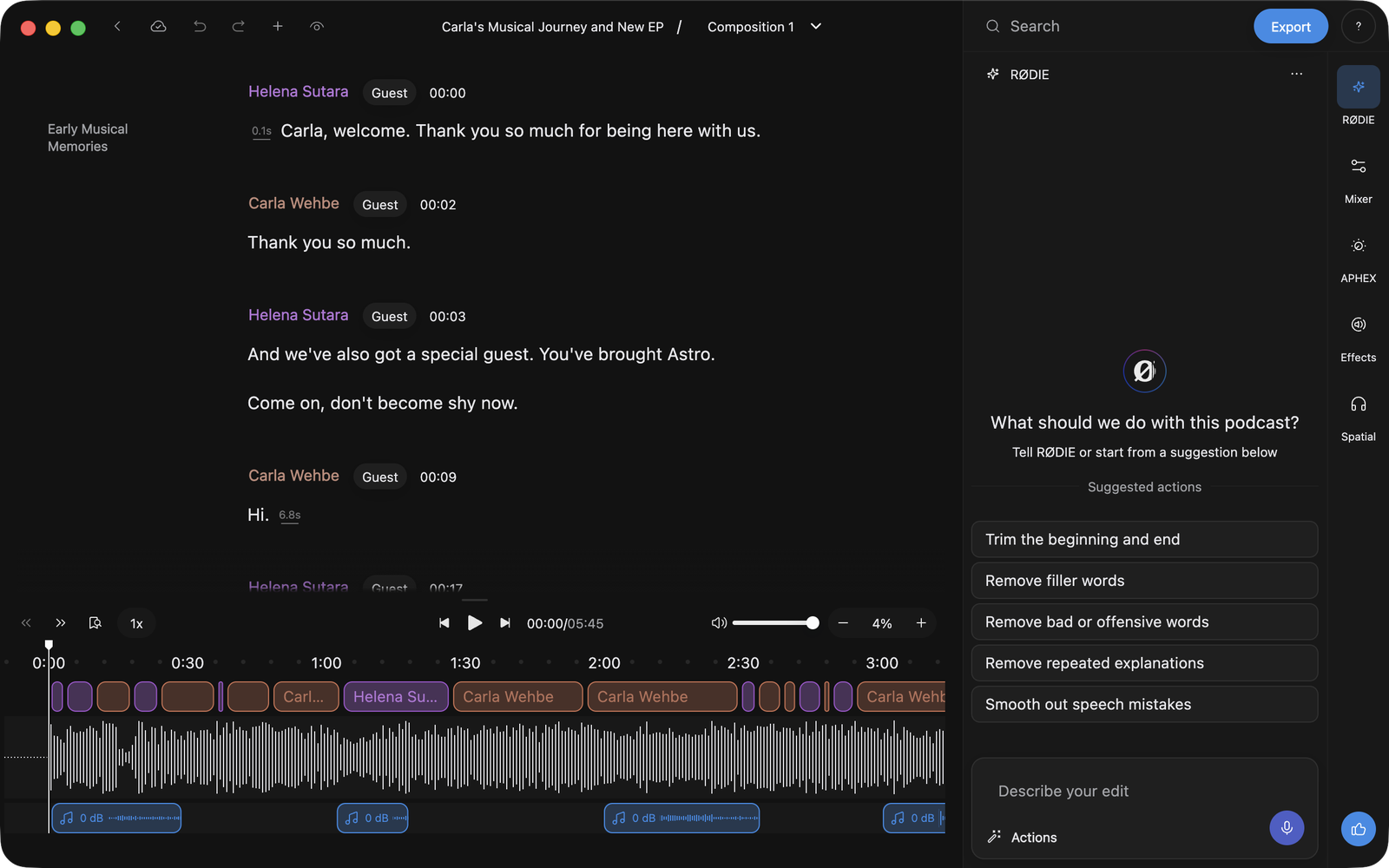
Get into the editor
Click Podcasts in the home window's sidebar, pick your podcast, then click Edit in the podcast header. You land on whichever composition you had open last, which isn't always Original, so read the title at the top before you start cutting. To open a particular cut, click its card in the podcast's Compositions section. See Compositions & Versions.
What's on screen
The transcript runs down the middle: your recording as words, one block per speaker turn. You edit the audio by editing the text, covered in Edit Like a Doc.
Topic titles pin down the left of the transcript, each sitting where its topic starts, so a long recording stays navigable as you scroll. Jump between them with the Topics picker.
The playback row runs under the transcript: Play and a 15 second skip either side in the centre, topic controls and the speed button to the left, Output volume and the zoom stepper to the right.
Above Play sits a short bar. Drag or click it to open and close the timeline, and each podcast remembers how you left it. The ruler, the waveform and the speaker row are covered in Playback & the Timeline.
Open a panel on the right
The tabs on the right are RØDIE, Mixer, APHEX, Repair and Spatial. Click a tab to open its panel, and click the open one again to collapse it and give the transcript the full width.
RØDIE is where to start. Switch tabs and come back: your conversation, your pending edits and that half-typed message are all still there. A dot on the tab means a reply landed while you were elsewhere.
Work from the top bar
Whole-edit actions run along the title bar. Back leaves the editor, the cloud icon beside it is sync (hover for the state in words), then undo and redo.
+ is the import menu, holding Import Audio and Import Background Music. See Insert Audio into Your Edit. The eye icon is View changes, which shows your cut against the original with removed words struck through. See Compare & Revert Changes.
Centred are the podcast title and the composition you are editing. Click them to switch cuts.
Search, Export and the round Help button sit top right. Export hands you the composition you're on as audio, a transcript or a timeline: see Export & Publish. Help holds Show Tour, which replays the first-run tour, and User Guide.
Find a word in the transcript
Click Search and it expands into a text field. Type a word or phrase: every match highlights and the current one scrolls to the middle. Enter steps to the next match and Shift+Enter to the previous, and stepping takes the playhead with it, so whatever you find is already cued up to play.
Make the transcript text bigger
Text size lives in the View menu. See Menus, Tips & Keyboard Shortcuts.
Unlock editing with Start Editing
Every recording arrives read-only, sitting on Original. Click Start Editing in the RØDIE panel, or click any dimmed tool and take the Start Editing button it offers you.
Locked doesn't mean idle. Reading, playing, seeking, zooming and checking View changes all work before you unlock anything.
Note: Unlocking is how a recording becomes yours to work on, and you do it one recording at a time, and it sticks.