
Settings & Your Account
Last updated: September 2026
Where the settings live
Click your name and avatar at the top of the sidebar. The menu opens beside it: Account, Appearance, Audio, Data & Storage, Language and Privacy & Support.
Your name, picture and email
Account is where you put a face and a job title against your name. Click Edit at the top right, fill in First Name, Last Name and Job Title, add a picture under the avatar, and click Save.
Clicking Additional Information opens a new message in your mail app, which catches most people out once.
Logging out clears this computer
Scroll to Log Out from Account, click Log Out and confirm.
Everything you had downloaded to this computer goes with it. Nothing leaves your account, but when you sign back in every podcast is preview only until you restore it.
Deleting your account
Delete Account is on the same page. It permanently removes your account along with your recordings, contacts and projects, and it cannot be undone. Click Delete Account, click Continue, then type DELETE into the confirmation field and click Delete Account again.
To clear one podcast or start it over instead, use Delete, Recover & Start Over.
Light, dark and an accent colour
Too bright to work in at night? Appearance gives you three cards: Auto, Light and Dark. Auto is the default and follows your computer. The change lands the moment you click.
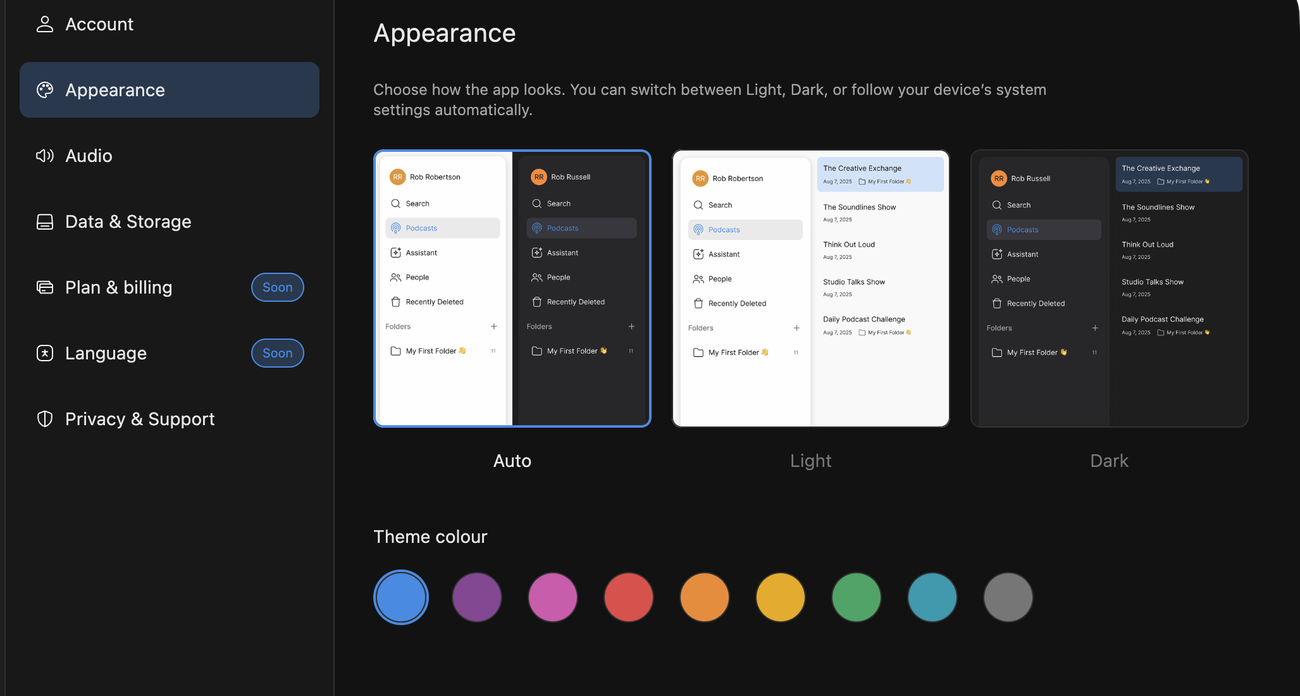
Under Theme colour, blue is the default. Pick another and it recolours every accent in the app.
Pinning playback to one device
RØDECaster Studio plays through whatever output your computer is using. To keep it on one set of headphones instead, open Audio, turn off Follow system output, and choose a device from Output. Playback stays there even when your computer switches its own output elsewhere. Turn the switch back on and playback follows the system again.
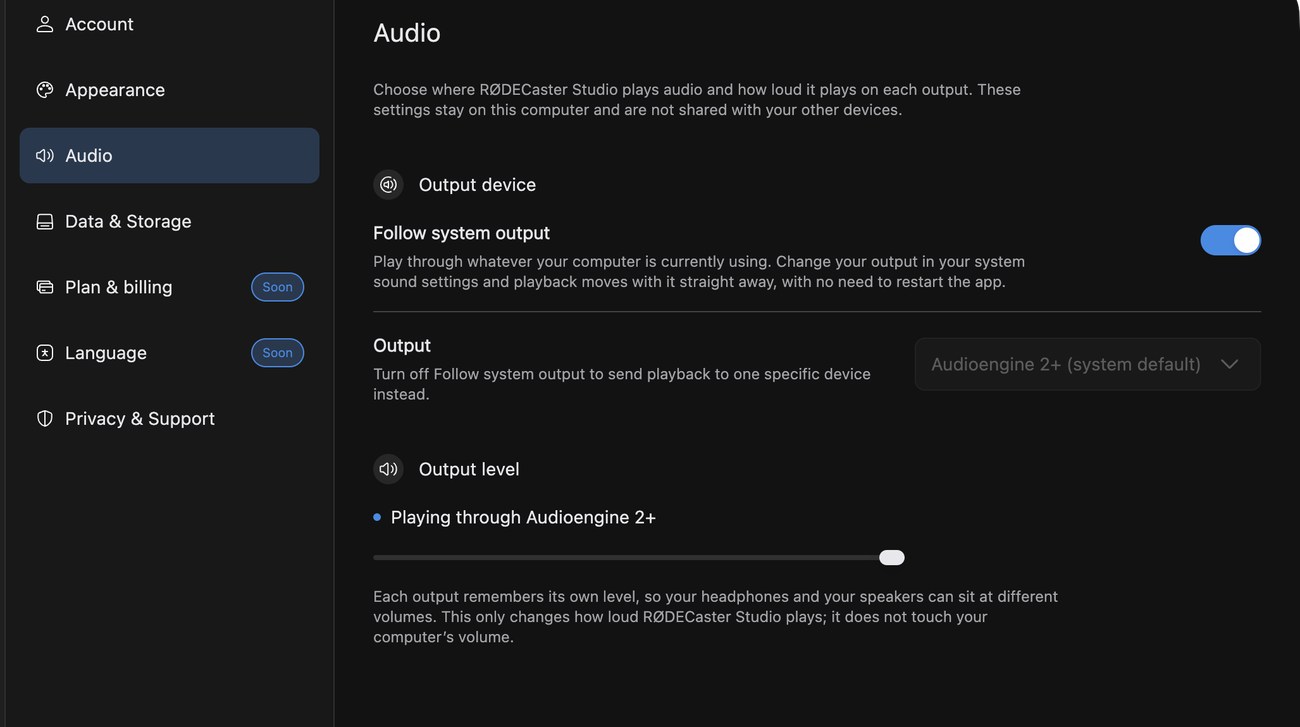
Each output keeps its own level, because headphones and desk speakers rarely want the same volume. Drag Output level and you hear it as you drag; it saves when you let go.
The speaker button in the playback row under the transcript is the same control, mute included. None of it reaches an export: the levels that do are the per-speaker faders in Mixer & Speaker Levels.
Freeing up space and getting help
Open Data & Storage to see how much room is left on this Mac or PC and which podcasts are using it. Click Remove copy to clear one, or Remove All to clear the lot. For how previews and restoring work, see Local Copies & Storage.
When you want the legal wording or a human to talk to, open Privacy & Support for Terms of service, Privacy policy and Contact Us.