
People, Contacts & Voice Recognition
Last updated: September 2026
The contact book for your shows
Keep everyone who turns up on your podcasts in People, with a name, a job title, an email, a photo and a colour. Name a voice once in a transcript and RØDECaster Studio recognises it in your next recording. Putting names to voices is covered in Who Is Speaking.
Click People in the sidebar. Edit, Change colour and Delete live on a right-click, or on the menu beside Add New.
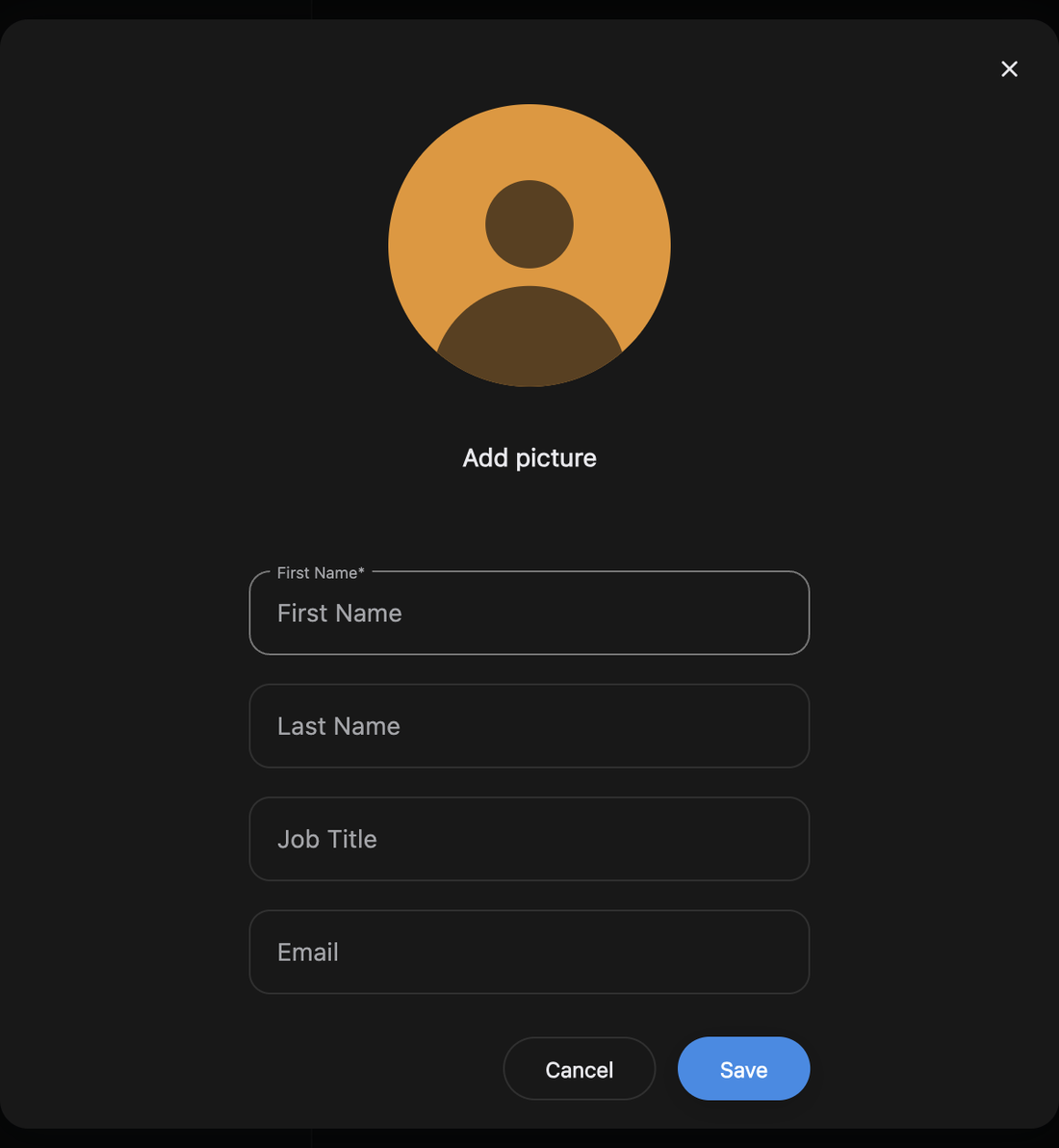
Add someone
Add people whether or not the recording exists yet. Click Add New.
- Fill in First Name, the only thing it really needs.
- Add Last Name, Job Title and Email if you have them.
- Click Add picture and choose a JPG or PNG, or skip it.
- Click Save.
Pictures are cropped to a centre square, so keep your subject roughly in the middle. To change any of this later, right-click the person and choose Edit.
Colour is how you tell speakers apart
Everyone carries a colour, photo or not. To choose a different one, right-click the person and point at Change colour. The set starts over once you have enough people, so two speakers in one episode can end up sharing a colour: change one of them.
That colour follows them around the app: the initials avatar, their name above a transcript paragraph, their fader cap in the Mixer, their dot on the Spatial radar, and their caption colour in an SRT export while Include speaker colour is on. What each one does with it is in Mixer & Speaker Levels, Spatial Audio and Export Transcripts & Timelines.
Mark who hosted and who guested
Roles record who was running an episode and who was on it. You'll need to start editing the podcast first, then click somebody's tag in its Host & Guests list to flip Guest to Host.
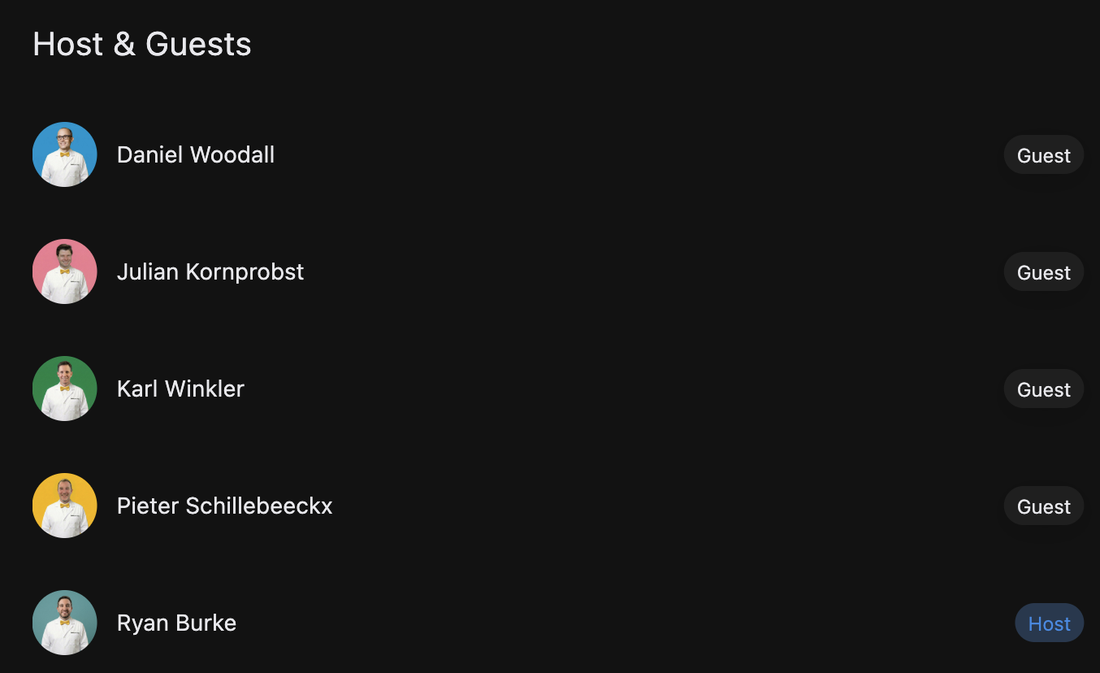
Everyone starts out a guest, and a show can have more than one host. Roles are per podcast, so your host this week can be a guest the next. The same tag sits beside a speaker's name in the transcript.
Open somebody's profile and click their email row to start a message in your mail app. Under it, Appears In shows every podcast they are heard on, so click a card to open that podcast. A show turns up here once the person is linked to a voice in its transcript.
How voices get recognised
Name a voice once and it arrives already named next time, on that show and on every other one.
Unlink voice, on the timeline speaker row, breaks the link between a person and a voice. Nothing but Delete Account makes the app forget a voice for good, and that takes your whole account with it and cannot be undone.
If somebody comes back as a fresh, unnamed speaker, a change of mic or room usually explains it. Name them again in the transcript and the link is back: Who Is Speaking.
Delete a person, or find one fast
Right-click, click Delete, confirm. The confirmation sounds final, but this is a move to Recently Deleted, where people sit for 30 days; recovery and the permanent option are in Delete, Recover & Start Over. Delete somebody permanently and that speaker reads Unknown.
To jump straight to anybody, press ⌘P (Ctrl+P on Windows), type a name, an email or a job title, and click the result.