
Edit Like a Doc
Last updated: September 2026
RØDECaster Studio transcribes your recording, so you edit words instead of scrubbing a waveform. Delete a sentence and the audio goes with it, and the cut closes cleanly behind it. Wrong words and baggy pauses are handled in Correct Words & Adjust Pauses.
Unlock editing first
Original is the untouched recording, and it's read-only: click any tool and you'll get a Start Editing button. Unlocking is how a recording becomes yours to work on, one recording at a time, and it sticks.
That first edit creates Composition 1 and moves you onto it, so the raw recording is always there to go back to (Compositions & Versions).
Words under background music edit like any other: music is split from speech when the project opens (Background Music & Separation).
Select the words you want
A plain click moves the playhead and drops an anchor that everything else grows from.
- Double-click takes the word, triple-click the whole paragraph.
- Drag takes a run, across a speaker change if you need it.
- Shift+click extends from the anchor to the word you click.
- Left and Right move a word at a time, and Shift with them grows or shrinks the selection.
- ⌘A (Ctrl+A on Windows) takes the whole transcript, including the parts scrolled off screen. Select All then Delete empties the recording, not just the bit you can see.
A selection paints a band across the timeline rows and scopes playback: Space plays just that range (Playback & the Timeline).
Bring up the toolbar
Right-click your selection and the toolbar appears where you clicked.
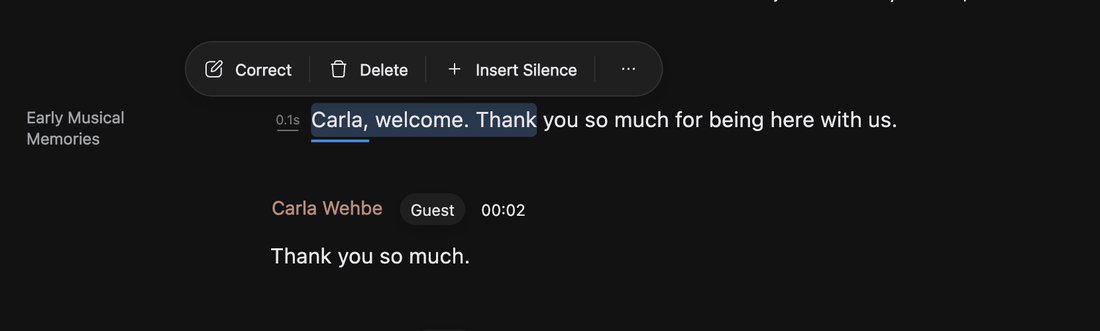
Correct a word, Delete the span, Insert Silence, or Adjust a single word. More options holds Copy, Cut, Paste and Export Selection, plus two worth knowing: Change speaker hands the words to someone else already heard in this recording (Who Is Speaking), and Reset puts the span back exactly as recorded.
Over pending edits you also get Discard and Discard All, the fastest way to clear several (Review, Apply & Discard Edits).
Delete, and break up the wall of speech
Select the words and press Delete or Backspace. Duration drops, the transcript reflows, the cut closes. Everything between the first and last selected word goes as one step, so a single undo brings the lot back.
To start a new paragraph, click the word that should lead it, with nothing selected, and press Enter. Click that word again and press Backspace to rejoin them.
Copy a passage and paste it elsewhere
Move a good take somewhere better, or drop written lines in and have them spoken in the host's voice.
- Select the run and press ⌘C to copy, or ⌘X to cut.
- Click the word it should land in front of, or select the words it replaces.
- Press ⌘V. On Windows, all three are Ctrl instead.
Copy writes readable text, with a speaker header at each change and a footer naming the podcast. Paste it straight back and the real audio travels with the words.
Copy something else in another app in between, and the next paste gets spoken in the speaker's voice and spliced in. Those spoken pastes are sized for a fix, a flubbed word or a name said wrong, not a new sentence, and they need an internet connection.
Escape, undo and redo
Nothing here is one-way, so cut boldly and tidy up after.
Escape backs out of whatever you're in the middle of: a correction field, a selection, a search, an Adjust popover. Undo and redo are the arrows in the top bar, ⌘Z and ⌘⇧Z, or Ctrl on Windows.
To compare your edits against the untouched recording, use the eye icon in the top bar, View changes (Compare & Revert Changes).