
Export & Publish
Last updated: September 2026
Turn the edit into a file
The Export dialog has three tabs: Audio, Transcript and Timeline. This page covers Audio. For subtitles and cut lists, see Export Transcripts & Timelines.
Where you open it decides what ends up in the file.
- The Export button at the top right of the editor gives you the edit you have open right now.
- The podcast title and composition in the top bar, or a composition card on the podcast details page: right-click, then Export. That gives you the composition as it stands.
- A transcript selection: right-click the words, then Export Selection.
Those first two drift apart the moment you edit past the composition named in the top bar, so choose deliberately.
Rename the file at the top of the dialog if you want to.
Let a platform preset carry the spec
Know where the episode is going? Pick it from Preset and the settings below fill in and lock, so the file matches what that platform expects without you having to know its numbers.
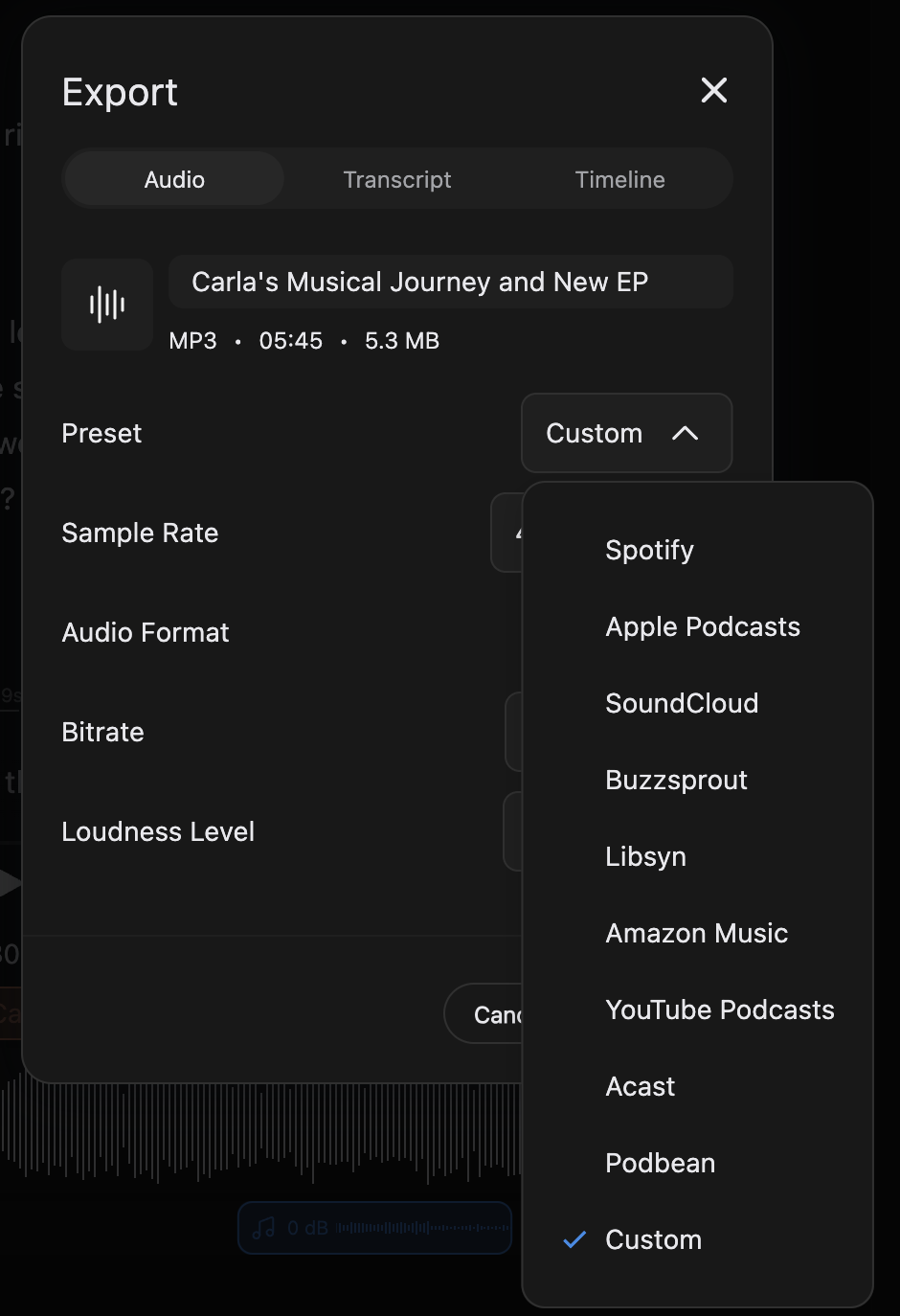
Then click Export and choose a folder.
Dial it in yourself
Custom unlocks the fields below it. Set Audio Format first, because changing it resets the quality setting underneath and you'll lose whatever you chose there.
Loudness Level is the one worth a moment's thought: pick the target your platform asks for, or Disabled if you've mastered to a target of your own and want the file left exactly as you made it.
Export a quote or a promo
A short clip doesn't need a composition of its own. Select the words in the transcript, right-click, choose Export Selection, then export as usual. The name picks up " - clip" by itself.
Pending edits go out as you hear them
Export saves your project first, then renders the cut the way it plays. Any pending edits you haven't reviewed yet count as done: struck-through words stay out, and new audio goes in.
While it runs
The dialog closes and the export carries on in the background, so keep editing and keep browsing. Only one export runs at a time.
To stop one, click the X beside the export progress and confirm. Cancelling leaves you with no file, so you start again from the top.
What lands in the file
The file carries everything from the Repair, Mixer, APHEX and Spatial panels, so it matches what you hear.
With Spatial on, the mix is binaural, so listen on headphones to hear it as intended. See Spatial Audio.