
Multitrack Recordings
Last updated: September 2026
Recorded everyone on their own mic? Bring the tracks in as they are. A multitrack keeps one track per microphone, so you can balance the room before there's a podcast to edit, then hand the finished mix over to the transcript.
Bring the tracks in
Click Import in the sidebar and select every track at once. Two or more audio files make a multitrack. One file still makes an ordinary podcast, and video has to come in on its own. Dragging onto the window takes one file at a time, so use Import for a set.
The multitrack lands in Podcasts with a Multitrack tag, and its page lists the tracks, each with its own play button. Click Edit to open the multitrack editor.
Balance the mics
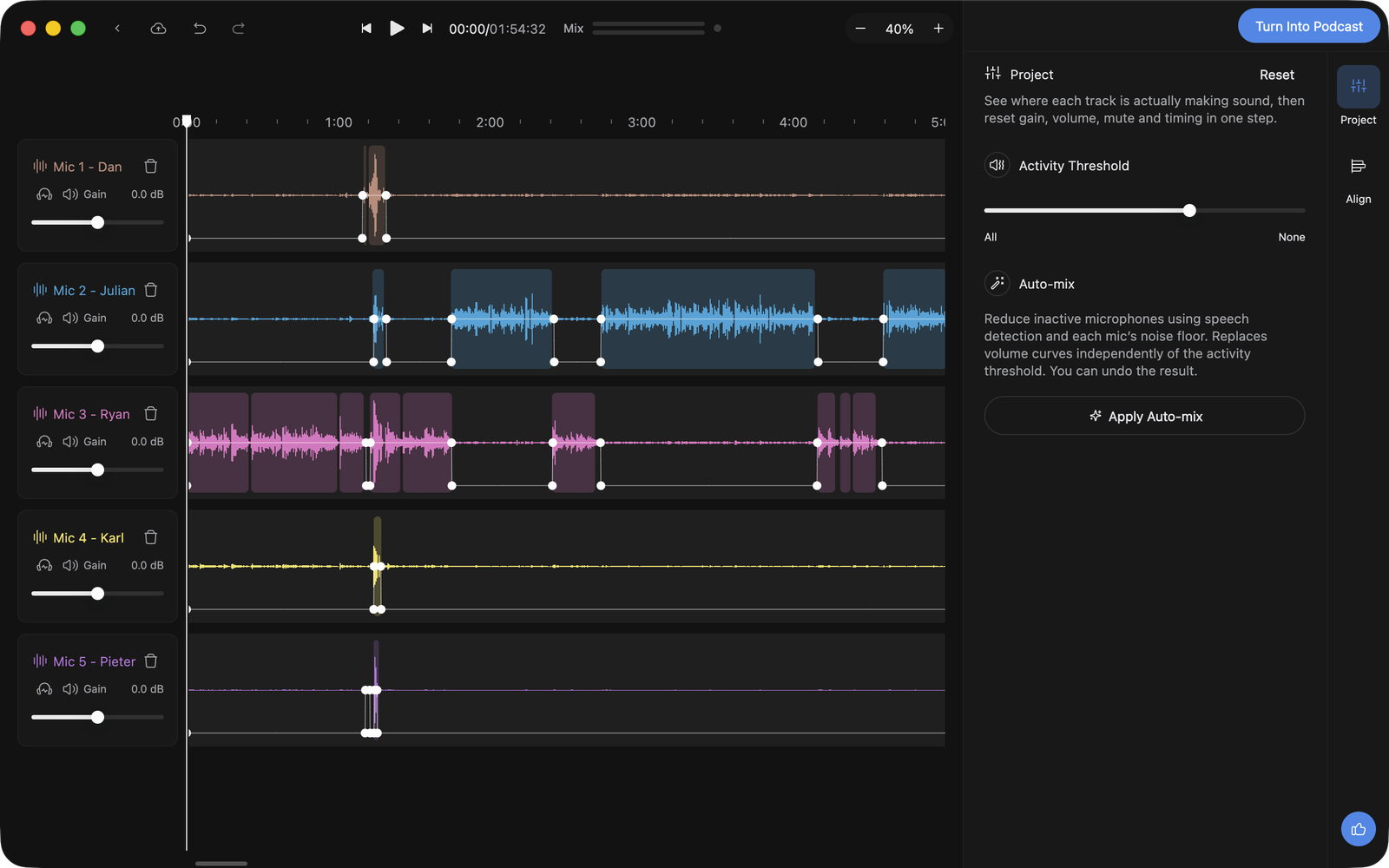
Every track has its own header. Gain sets its level. The speaker icon mutes it, and the headphones solo it so you hear that mic alone. Solo is for listening only and never reaches the mix. Double-click a name to rename it.
The line through each waveform is its volume. Double-click to add a point, drag it to shape the level, and double-click a point to remove it. Right-click a point to choose a Linear or Smooth fade into the next one.
Activity Threshold, in the Project panel, shades the stretches where each mic is picking someone up. Slide it toward None to see only the loud parts. It changes the shading, never the sound.
Let Auto-mix duck the idle mics
Five open mics means five rooms' worth of hiss and five copies of every laugh. Apply Auto-mix listens to each mic and pulls it down whenever its person isn't talking.
It replaces the volume curves on every unmuted track, so it asks first. By default an idle mic drops 20 dB, which keeps the room sounding natural. Switch on Fully mute inactive microphones if you'd rather silence it outright. Reduce brief quiet reactions also tucks away the little "mm-hm"s.
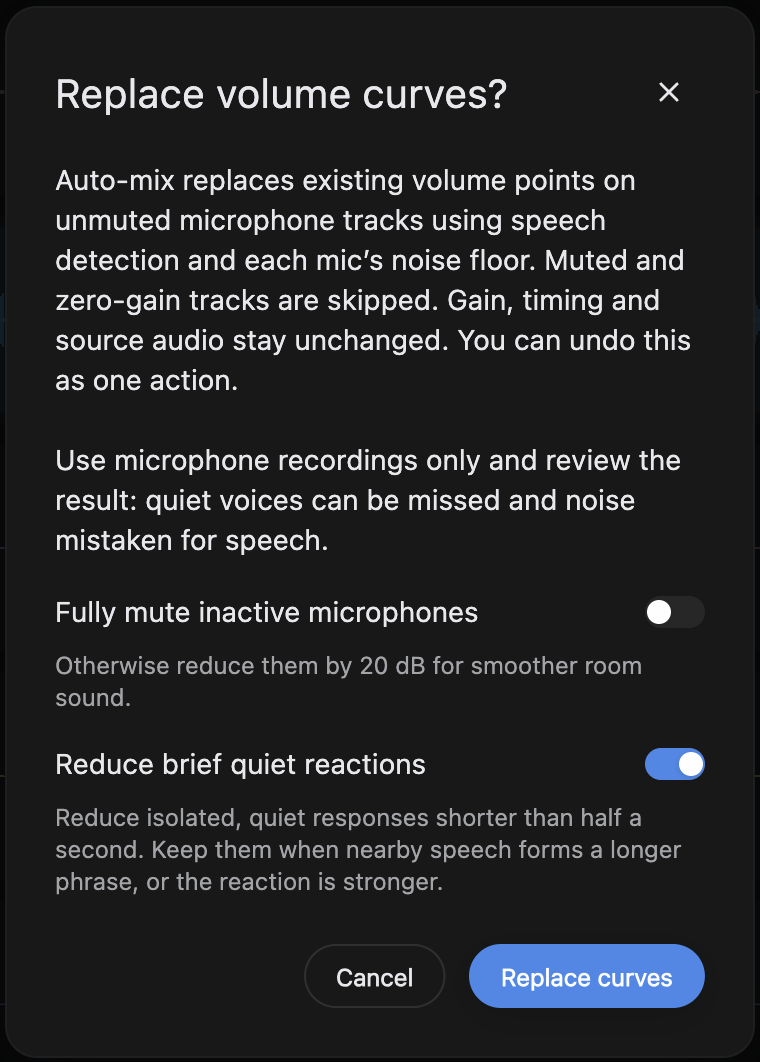
It works best on microphone tracks. Give the result a listen, especially where someone speaks very quietly.
Line the tracks up
If one recorder started late, open the Align panel and type each track's start time in seconds. Or drag a track's label along the timeline until the takes line up.
Turn it into a podcast
Happy with the balance? Click Turn Into Podcast. RØDECaster Studio mixes the tracks down to one podcast and transcribes it, and it turns up in Podcasts ready to edit. The podcast keeps its Multitrack tag, and its page lists the tracks with Open Multitrack Editor.
You can go back and rebalance at any point. The button now reads Update Podcast Audio, and it swaps the new mix in under your edits. Track timing is locked from here, so the transcript stays in step with the audio. Gain, mute and volume curves still move freely.