
Playback & the Timeline
Last updated: September 2026
Playing, seeking and scrubbing happen in the editor. Click Edit on a podcast: the playback row sits under the transcript, the timeline just above it. New to all this? Start with The Editor Window.
Play, pause and change speed
The space bar starts playback and stops it again, as do Play and Pause in the centre of the playback row, with a 15 second skip either side. The button reading 1x is the speed control: each click steps to the next rate and then wraps back round. Speed resets when you leave the editor, so a fast pass through one podcast doesn't follow you into the next.
Move around by clicking words
Click a word and the playhead goes there. The click never starts playback, so press the space bar to hear it. Two clicks select that word and three select the paragraph, so a hesitant double click leaves you with a selection rather than two seeks. To audition a phrase before you cut it, drag across the words and press the space bar: playback runs the selection and stops at its end.
The transcript follows along as the playhead moves. Scroll by hand and the view stays yours for a moment before playback takes it back.
Jump to a topic
Long recordings are tagged into topics, and the picker is the fastest way to cross one. Click Topics, the bookmark icon, and the list opens on the topic you are in, with the start times beside the names. Hover a row to preview its transcript alongside, then click the row to move the playhead there, or a chunk of the preview to land on that exact spot. Previous topic and Next topic step one at a time.
Set your listening level
The speaker icon and slider at the right of the row set how loud RØDECaster Studio plays, and clicking the icon mutes it. Neither touches your episode: it is the same Output level you will find under Audio in Settings & Your Account.
Open up the timeline
Drag the short handle directly above Play upwards to open the timeline, down to close it.
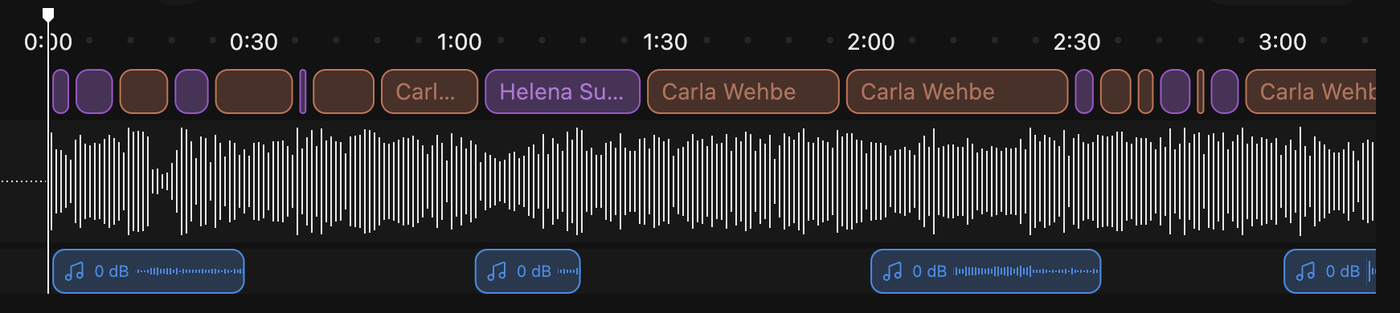
A ruler runs across the top. Under it, coloured blocks show who talks where, the waveform belongs to the composition you are editing, and the rows below hold separated music, background noise and imported background music.
Click the ruler, the speaker row or the waveform to seek, and drag sideways to scrub. Drag towards either edge and the timeline pans with you. A speaker block opens its own menu, covered in Who Is Speaking, and the clip rows have gestures of their own, covered in Background Music & Separation. Collapsed, the timeline is still one thin bar across the whole recording: click or drag anywhere along it to move.
Zoom in and pan around
Use the zoom stepper at the end of the playback row, or scroll over the timeline, up to zoom in and down to zoom out, anchored under the pointer. Yes, scrolling zooms rather than pans, which catches everyone out once. Pan with a horizontal scroll gesture or the middle mouse button dragged, or just scroll the transcript, which the timeline follows.
Before you unlock the podcast
Nothing on this page needs unlocking: a podcast you have only listened to still plays, seeks, scrubs and zooms. See Compositions & Versions.