
Delete, Recover & Start Over
Last updated: September 2026
Nothing here is as final as it looks
Deleting a podcast or a person loses nothing. The item moves to Recently Deleted, waits there 30 days, and comes back with one click. Only four things are truly final: permanent deletion, emptying the bin, deleting a folder, and Reset.
Delete a podcast or a person
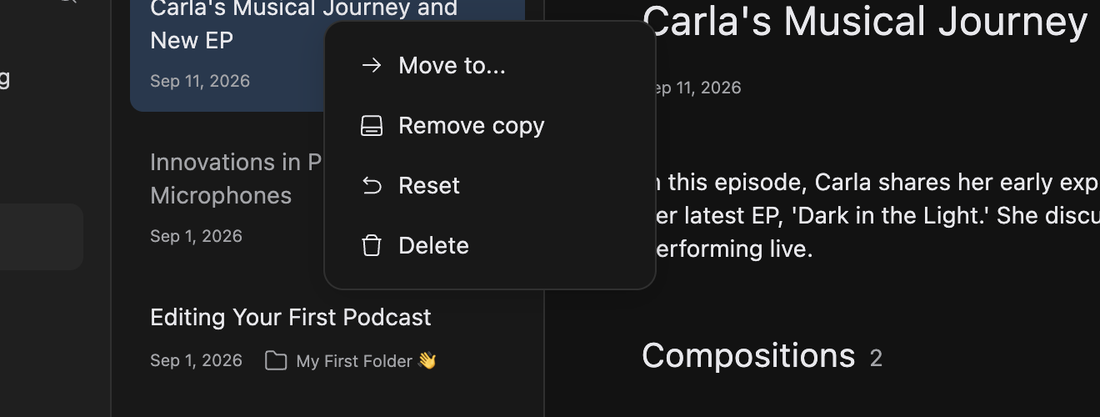
In Podcasts or People in the sidebar, right-click a card and choose Delete. The confirmation reads like the end of the world. It isn't: the item is just going to Recently Deleted.
Your own account contact is the one you can't delete. Deleting anyone else leaves their name on your transcripts as the speaker, see People, Contacts & Voice Recognition.
Recently Deleted
Click Recently Deleted in the sidebar. Deleted podcasts and people sit under separate headings, each stamped with the day it went in. Click one and the banner above it counts down the days it has left.
To bring something back, right-click it and choose Recover, or use Recover in that banner. Recovery is instant and complete.
To free disk space without deleting anything, see Local Copies & Storage.
Delete for good
Right-click an item in Recently Deleted and choose Delete Permanently, or use Delete in that banner. That removes the item, and a podcast's media files with it.
To clear the lot in one go, hover Recently Deleted in the sidebar, open its menu and choose Empty. Podcasts and people go together.
Deleting a folder
Right-click a folder in the sidebar and choose Delete. Folders never reach Recently Deleted, so the confirmation is your only chance to stop. The podcasts inside are safe: they come out of the folder and go back to the plain Podcasts list. See Organise Your Library.
Start over on a podcast
Reset throws the whole project away and hands you back the recording as captured. Right-click the podcast, choose Reset, and confirm. It clears every composition, every edit you applied, your RØDIE conversation and every breath you reviewed. The recording itself, and its place in the library, stay.
It's the blunt instrument, and rarely the one you want. To take back a stretch of editing, select those words and use Reset in the transcript, or turn on View changes with the eye button and put back one change at a time, see Compare & Revert Changes. Deleting a composition is permanent too: it never reaches Recently Deleted.