Organise Your Library
Last updated: September 2026
The library is home: every podcast you have imported, the people in them, and the folders you file them into.
Find your way around home
Three columns run left to right. The sidebar holds your profile row, Import, Podcasts, People, Recently Deleted and your Folders.
Drop an audio or video file onto Podcasts, or into an open folder, to bring it in, one file at a time. The full story is in Import & Upload Recordings.
Read a podcast card
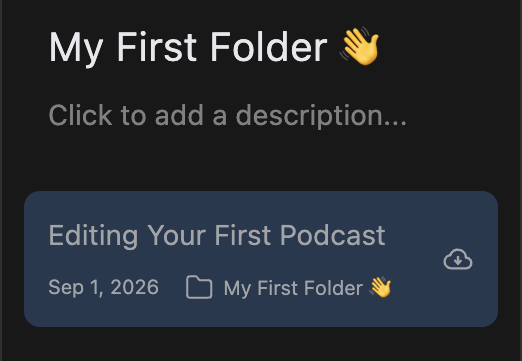
A card carries its title, its creation date and, once it is filed, the folder it lives in. A Multitrack tag means it came from a set of microphone tracks, see Multitrack Recordings. The list runs newest first.
A cloud icon on the right, title dimmed to match, means the audio is not on this device. Nothing is broken: your compositions and edits are all still here. See Local Copies & Storage.
Right-click a card for Move to..., Remove copy, Reset and Delete. Reset throws away every edit and starts again from the original audio, so treat it as a last resort. Delete is gentler: the podcast goes to Recently Deleted.
Make a folder
Folders keep seasons, shows and clients apart.
Hover the Folders heading in the sidebar, click the + that appears, type a name and press Enter. File > New Folder does the same job, with ⌘⇧N on macOS and Ctrl+Shift+N on Windows.
Click a folder to open it. Its title and its description both edit in place: click, type, Enter. A description earns its keep when two folders could plausibly hold the same episode. To rename from the sidebar instead, double-click the row, or right-click it and choose Rename.
File a podcast into a folder
Quickest is a drag. Press and hold on a card for a moment, drag it over a folder row in the sidebar, and let go once the row highlights.
The menu route does the same thing. Right-click the card, or use the menu at the top right of the open podcast, and choose Move to.... Pick a folder, or type into Search folders to narrow the list. Type a name no folder has yet and a Create row appears, making the folder and moving the podcast in one step.
To take a podcast back out, open that same picker and click the folder carrying the tick. It returns to the plain Podcasts list.
Imports follow the folder you are in. Start one with a folder open and the new podcast is filed there.
Delete a folder
Right-click a folder in the sidebar, or use its menu, and choose Delete. The folder goes, its contents do not: the podcasts inside return to the main Podcasts list.
Deleting a folder is permanent. Folders never reach Recently Deleted, which holds podcasts and people only. See Delete, Recover & Start Over.
Search with ⌘P
Press ⌘P on macOS or Ctrl+P on Windows, or click the magnifier at the top of the sidebar. It's ⌘P, not ⌘F.
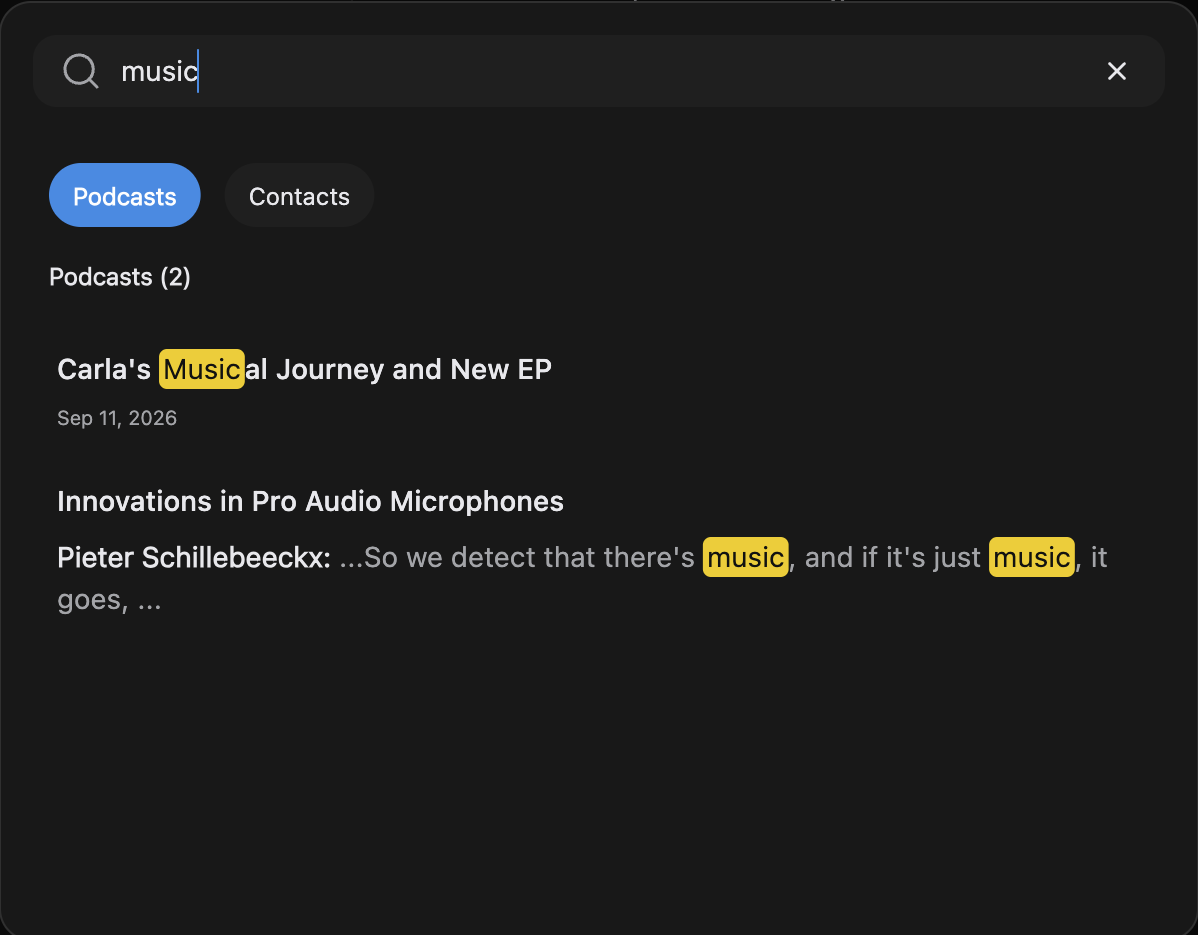
One box covers podcasts, contacts and folders at once. Each category with a hit gets a filter of its own above the results, and the list below belongs to whichever filter is selected. Click a result to open it.
Podcasts match on title, summary and the words actually spoken in the recording, and a transcript hit shows you the line it found with your term highlighted. Contacts match on name, email and job title, folders on title and description. Contacts are the same list the sidebar calls People, covered in People, Contacts & Voice Recognition.