
Correct Words & Adjust Pauses
Last updated: September 2026
Someone fluffed a word, or the transcript misheard a name? Corrections cover both, and the same right-click menu resizes the silences in between. Click Start Editing first to unlock the recording: nothing can be changed until you do, and your edits land in a new composition, not over the original.
Fix a word in the speaker's voice
Right-click the word and choose Correct from the selection toolbar, or just select it and start typing. The field opens with the original wording selected, so your first keystroke replaces it. Enter saves, Esc cancels.
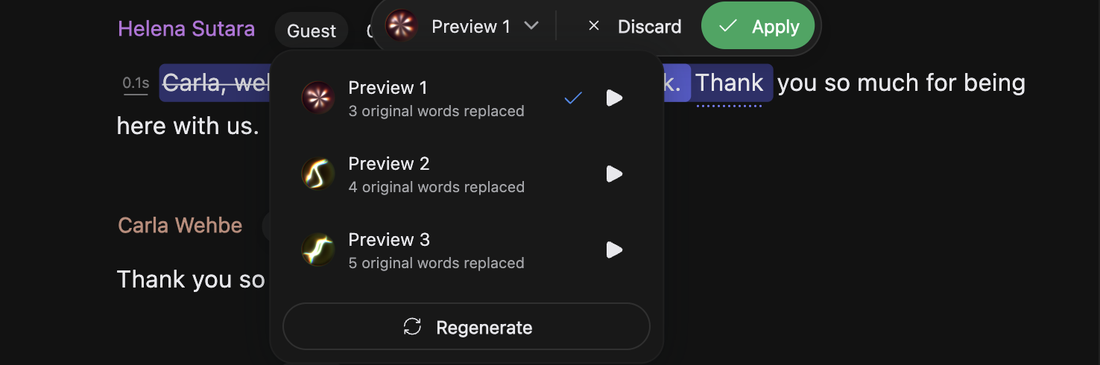
Type the replacement, leave Regenerate audio ticked, and press Enter. The new audio comes back in that speaker's voice and waits as a pending edit, with Apply and Discard on the bar above it. If several takes come back, a Preview 1 picker lets you audition them and Regenerate gives you a new set. Each take says how many original words it replaces: to make the new words sound natural it can borrow a neighbour either side, so the count is often higher than what you typed over. Nothing lands until you apply, so a take you dislike costs you the wait and nothing else. See Review, Apply & Discard Edits.

A correction is sized for a fix: enough to sort a flubbed word or a name said wrong, not enough to write a new sentence. It also has to sit inside one speaker's segment, and regenerating the audio is the one part that needs the internet.
Fix the spelling only
When the recording says the right thing and the transcript doesn't, untick Regenerate audio before you apply. The audio keeps the old word, and the written one is what your captions and transcript exports carry. This works offline.
It is also the only correction you can apply everywhere at once. With Regenerate audio unticked, type the replacement and click All: every place that wording appears gets rewritten, which is the quick way to fix a name or a brand that came out wrong all episode.
Insert and resize pauses
Right-click the word the pause should follow and choose Insert Silence, or press ⌘⇧I (Ctrl+Shift+I on Windows). You get half a second, so resize if that isn't the beat you wanted.
Every silence shows as a short dash with its length above it. Drag it sideways to resize by eye, or right-click it and choose Adjust to type an exact length.
To remove one, right-click and choose Delete, or select it and press Delete. That's a single undo step like any other deletion.