
RØDIE, Your Editing Assistant
Last updated: September 2026
What RØDIE is for
RØDIE is the editing assistant, on its own tab in the panels on the right of the editor. Click a one-click action, or describe the edit you want, and it works on the recording you have open. Nothing gets cut straight away: every change waits in the transcript as a pending edit for you to look at first. RØDIE stays inside your recording and your RØDE hardware, and needs an internet connection throughout.
Each recording keeps its own conversation, and so does each composition: switch composition and you are looking at a different history.
Let RØDIE suggest the pass
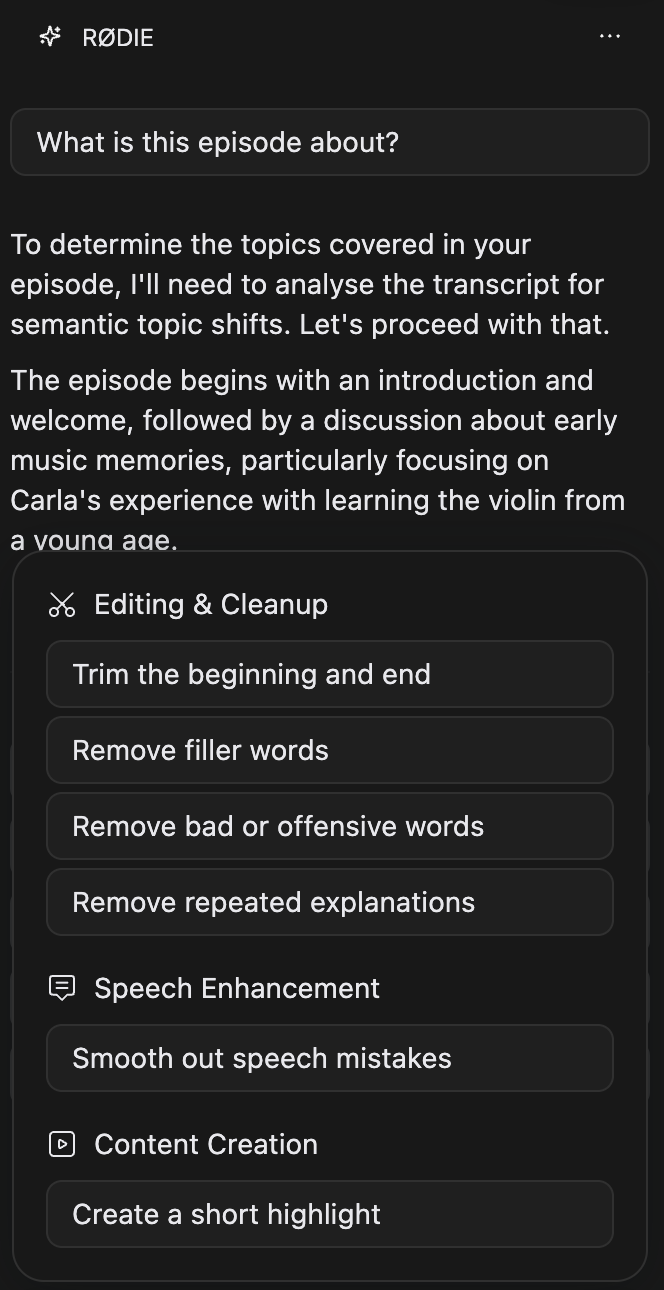
Not sure where to start? A fresh conversation offers a few Suggested actions, in the order they make sense to run. Click one and it sends.
Click Actions at the bottom-left of the message box for the full catalogue, and for anything you want to run a second time.
What each action does
Pick by the problem you have, not by the name.
- Trim the beginning and end: the chatter before your real intro and after your real outro.
- Remove filler words: every um and ah.
- Remove bad or offensive words: every swear it finds.
- Remove repeated explanations: where one idea got explained twice, the weaker telling goes.
- Smooth out speech mistakes: stutters, mid-word corrections and abandoned phrases.
- Create a short highlight: the best sentences for a social clip, in a duplicate composition, so your full edit is untouched.
Describe your edit in your own words
When no suggestion fits, say it plainly in the message box: "remove the bit about the sponsor", "cut this down to 90 seconds". Enter sends. While the box is empty, the round button on the right is a microphone: click it to dictate, and typing stops it again.
When RØDIE needs a decision, it asks under a Questions divider: pick one of the answers, or choose Other to type your own.
Stop takes the send button's place while RØDIE works, and ends a turn early.
Why RØDIE won't write for you
RØDIE fixes what you did say, a flubbed word, a stumble, a swear, and cuts anything you would rather lose. It won't write new words for you: your episode staying in your own voice is a deliberate choice, not a missing feature.
Ask instead of edit
RØDIE answers questions about the recording without touching it: a summary, where a topic comes up, how long the intro runs, who said what. Ask about setting up or troubleshooting RØDE gear and it searches the RØDE help centre, linking the article it used.
Ask it to drive the panels and compositions
Typing an instruction is often quicker than hunting for a control. RØDIE sets the APHEX dials, sets a speaker's level in the Mixer by name, separates the background noise and sets its level, places speakers in Spatial, and plays, pauses or changes playback speed. A dot on a tab means RØDIE changed something there that you haven't looked at yet.
Ask for an export ("export this at 128 kbps for Spotify") and it opens the Export dialog with those settings filled in. It stops there: the file is only written when you click Export yourself.
It also creates, duplicates, renames and switches compositions. Ask it to relabel a voice ("rename Speaker 2 to Dr Chen") and the new name appears everywhere that voice speaks, and in People if they are not there already.
Review the pending edits
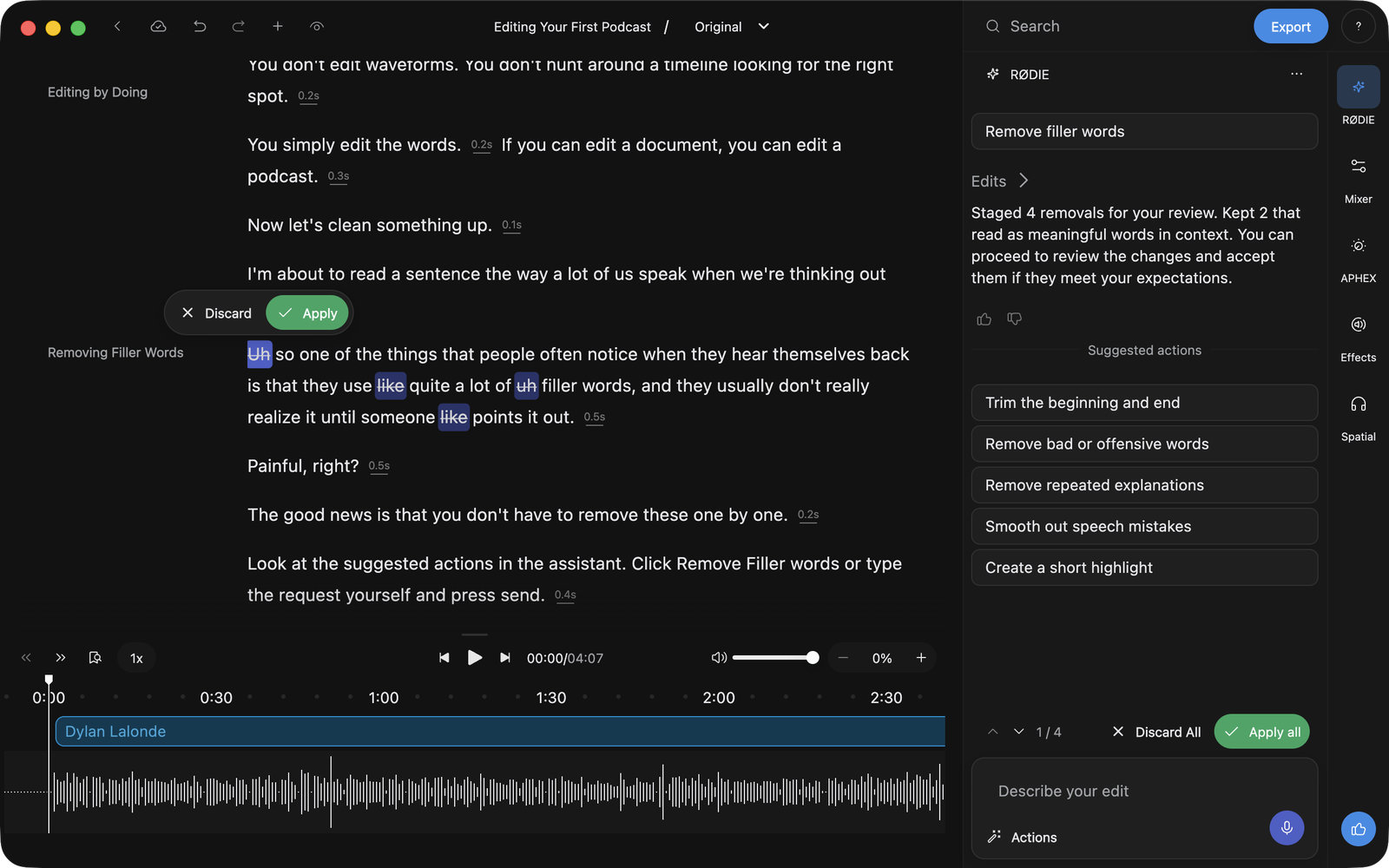
Pending deletions stay on the page, struck through and dimmed, but playback already skips them, so you hear the edit before you commit to it. Settle them from the review bar under the conversation.
A small toolbar sits above the edit you are on. Click the cross to Discard it or the green tick to Apply it, and the rest stay as they are.
If a proposed cut is a word too greedy, or a word too shy, resize it rather than discarding it and asking again: hover the struck-through run and drag the grip at either end. Apply takes the span you left, not the one RØDIE proposed.
Apply all and Discard All act on everything pending, not the edit you are looking at. A discard cannot be undone, so re-run the action if you want the proposals back. Apply on Original and Original stays as it was: your work saves into a new composition instead. Apply anywhere else and it lands where you are.
Leave a pass half-reviewed
Pending edits wait where you left them. Switch to another composition and come back, and they are still there to review. Playback and exports treat them as done, struck-through words left out, so what you hear is what you'll get.
Clear the thread when you are done
Clear conversation, in the menu in the panel header, wipes this composition's thread for good. Your edits are untouched.