Background Music & Separation
Last updated: September 2026
Music and speech as layers
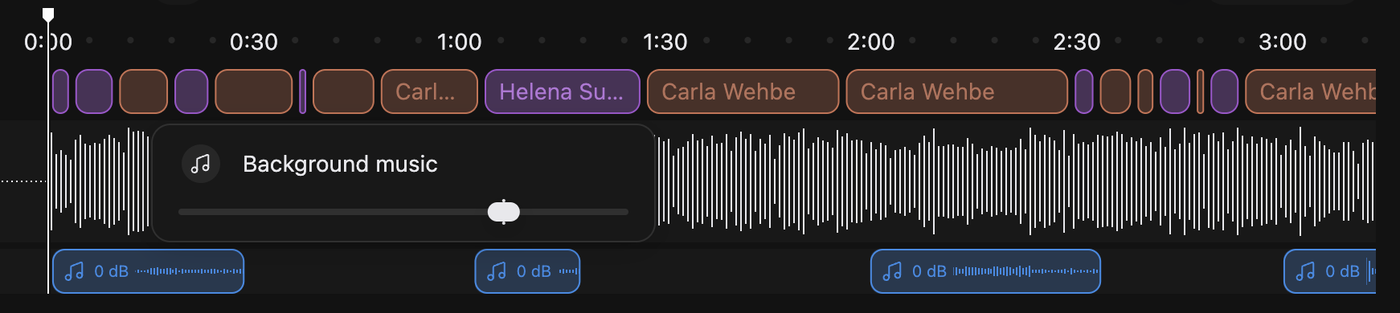
Separation splits a recording into a speech layer and a music layer. The music gets its own waveform, its own level and its own clip on the timeline, so cutting a sentence no longer cuts a bar of music with it. Word edits address the speech only, and cuts stay seamless under the bed.
The music split happens on its own. Every project is separated as it opens, so there is nothing to switch on and nothing to choose. If a stretch shows as a translucent highlight across the waveform it is still being split, and you cannot cut into the middle of it until that clears. Background noise is a different job: you start that one yourself with Apply Separation, in Repair Your Sound.
Set the music level
One slider holds the music under the voices across a whole episode: Background music levelling, in the Repair tab of the panels on the right. Drag it and the music moves under your hand.
It is levelling, not trimming. One move puts every separated music clip at the same level, wiping out levels you set clip by clip. To change one section only, use that clip's own Adjust. Beds you imported keep the level you gave them. More in Repair Your Sound.
Add your own music bed
A bed plays alongside the words rather than between them. For audio that should sit between two words, see Insert Audio into Your Edit.
Move the playhead to the starting point, click + in the editor's title bar, choose Import Background Music and pick your file. The clip lands at the playhead. A bed you import stays in that cut, so it will not turn up in your other cuts.
Trim or move a music clip
Expand the timeline (drag the handle above Play upwards, see Playback & the Timeline) and work on the clip in the background music row. Drag the body sideways to move it: neighbouring clips get pushed along rather than stacked on. Drag an edge handle to trim, zooming in with the stepper above the timeline if the handles are too small to grab. Click a clip you imported for Adjust, Duplicate and Delete. Delete fires straight away, though ⌘Z, or Ctrl+Z on Windows, brings it back.
Clicking a separated clip goes straight to its level, a slider labelled Background music. To take a separated bed out of the mix, bring that slider all the way down. Slide it back up any time.